Welcome to Chat Highlight User Guide
Learn how to capture AI conversations, keep work local-first, and move structured notes into Cloud Dashboard, Markdown, HTML, TXT, or Notion.
1. Introduction
Chat Highlight is a browser extension optimized for AI conversation scenarios. It works on any website and features specialized optimizations for AI interfaces like ChatGPT, Claude, and Gemini.
Core Problem Solved
How to efficiently extract, organize, and reuse valuable information from massive AI chats.
Core Components
Extension (Capture)
Cloud Dashboard
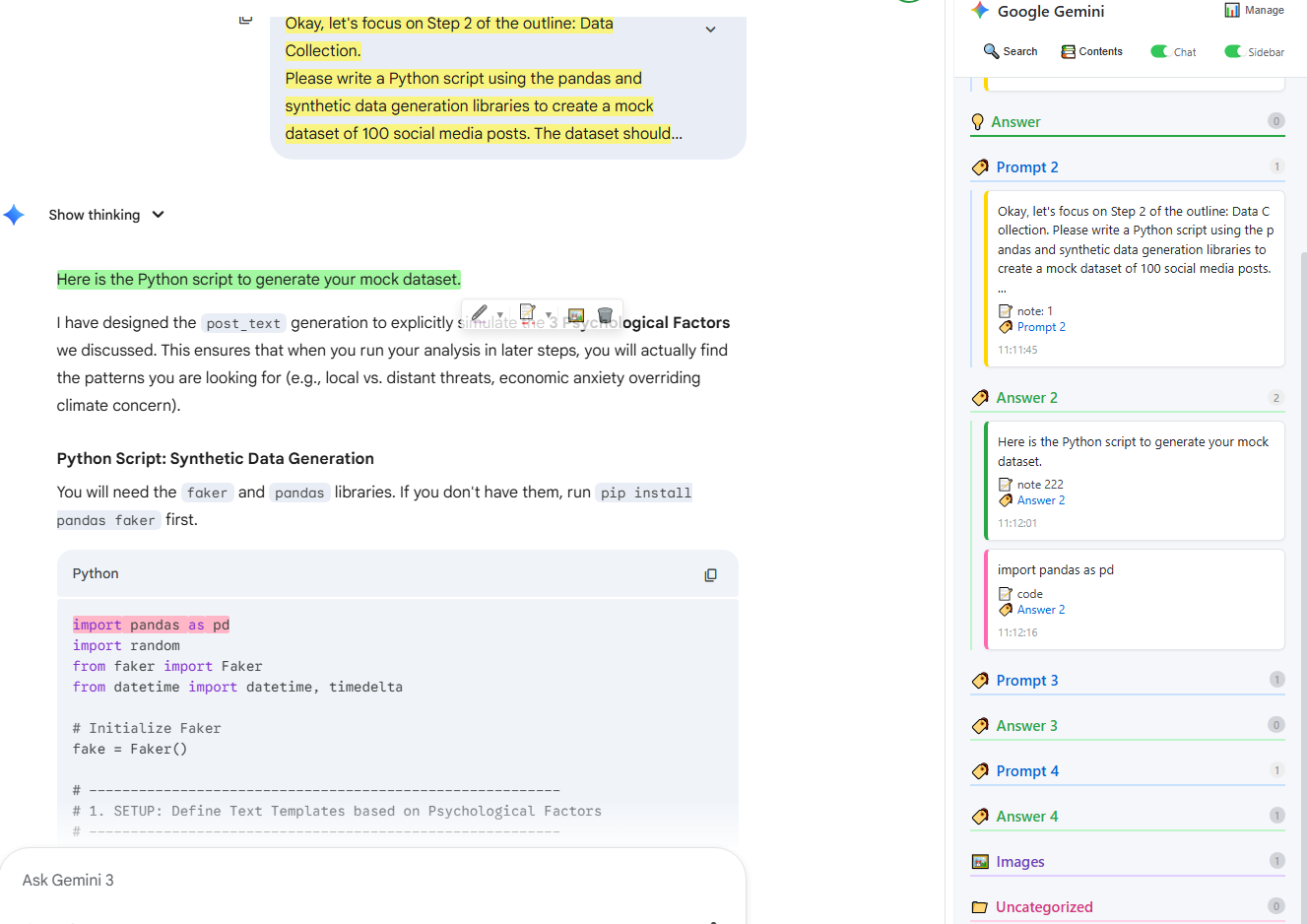
Core Philosophy: Local-First
Key Highlights
- Built for AI: Automatically detects ChatGPT, Claude, and Gemini structures. No more messy screenshots.
- Structured Notes: Industry-first "Chat Note" mode separates your Prompts from AI Answers on supported AI pages.
- Instant Export: Export to Markdown, HTML, or directly to Notion in one click.
- Cloud Sync: Seamlessly flow your AI insights between work and home.
- Privacy First: Local storage by default. We don't analyze your data or use it for AI training.
Workflow: Web to Knowledge Base
2. Use Cases & Workflows
Chat Highlight fits naturally into the workflow of developers, students, and researchers:
Academic Research
Code Learning
Inspiration
Content Creation
3. Installation & Setup
3.1 System Requirements

Google Chrome
Currently exclusive to the official Chrome Web Store
3.2 Installation Steps
- Visit the Chrome Web Store and search for Chat Highlight.
- Click "Add to Chrome" -> "Add Extension".
- Once installed, the icon will appear in your toolbar.
3.3 Pin the Icon (Recommended)
- Click the Extension (Puzzle) icon in your toolbar.
- Find Chat Highlight and click the Pin icon.
- The icon will now stay visible for quick access.
4. Quick Start: Your First Highlight
- Open any webpage (e.g., a ChatGPT conversation).
- Use your mouse to select text.
- A Floating Toolbar will appear above your selection.
- Pick a Color (representing different categories):
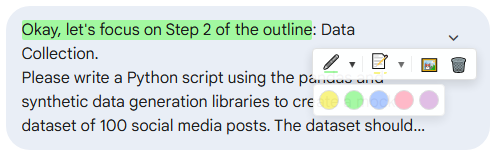
| Color | Default Meaning | Recommended Use |
|---|---|---|
| 🟡 Yellow | Important | Key takeaways, conclusions |
| 🟢 Green | Excerpt | Quotes, code snippets, references |
| 🔵 Blue | Fact | Data, sources, objective facts |
| 🔴 Pink | Question | Stuff to verify or research further |
| 🟣 Purple | Inspiration | Ideas, implementation thoughts |
Pro Tip: You can customize these labels. Double-click the category name in the Popup "Legend" section to edit.
5. Pick the color, and your highlight will be saved locally in real-time.
Pro Tip: Use Tags
#todo,
#quote) to build your own taxonomy. Filter by these tags in the Dashboard to
find exactly what you need.
5. The Extension Popup
Click the Chat Highlight 🖊️ icon in your toolbar to open the Popup.
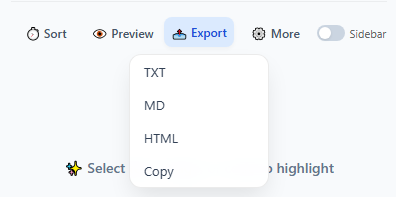
5.1 Action Buttons
-
⏱️SortToggle between "By Time" and "By Page Position".
-
👁️PreviewSee a formatted preview of your current page highlights.
-
📤ExportDownload TXT, Markdown, HTML, or Copy All.
-
🗑️ClearDelete all highlights for the current page (Local only).
-
📊ManageJump to your Local or Cloud Dashboard.
5.2 Feature Toggles
-
FloatFloating toolbar after selection
-
HighlightGlobal visible toggle
-
LanguageSwitch between EN/ZHEN
-
SidebarOpen Side Panel by default
6. Workspace Sidebar
The Sidebar offers deep organization and note-taking features, useful for intensive research.
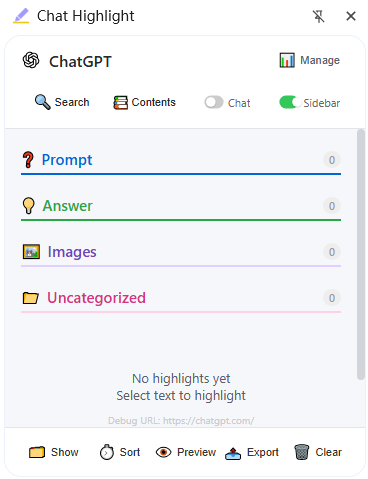
6.1 Opening the Sidebar
- Enable "Sidebar" toggle in the Popup.
- Or right-click extension icon -> "Open Side Panel".
6.2 Tree View
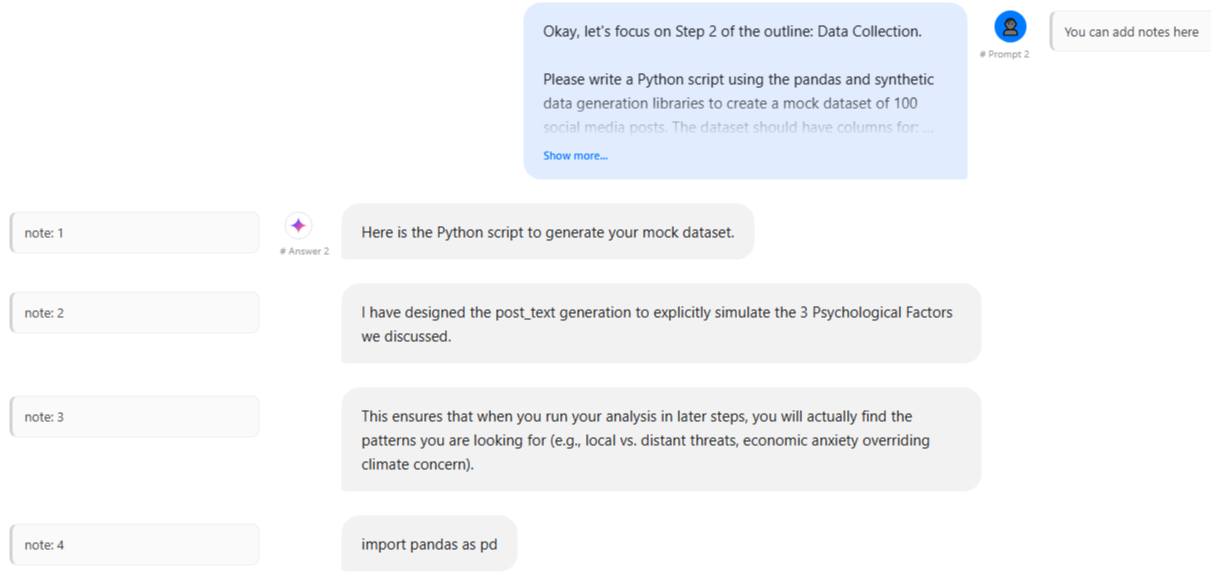
- Prompt: Your questions / input.
- Answer: The AI's responses.
- Images: Visual screenshots.
- General: Common website text.
6.3 Chat Note Mode
6.4 Search & Filter
- 🔍 Global Search: Instantly find text, notes, and tags.
- Filter: Toggle Prompt-only or Page Position views.
Set Chat Note behavior independently for supported AI domains instead of relying on one global toggle.
Hide visual highlights while Chat Mode keeps capturing structured prompts quietly.
Match images by source, dimensions, alt text, role, and nearby context to survive dynamic AI pages.
7. Local Dashboard
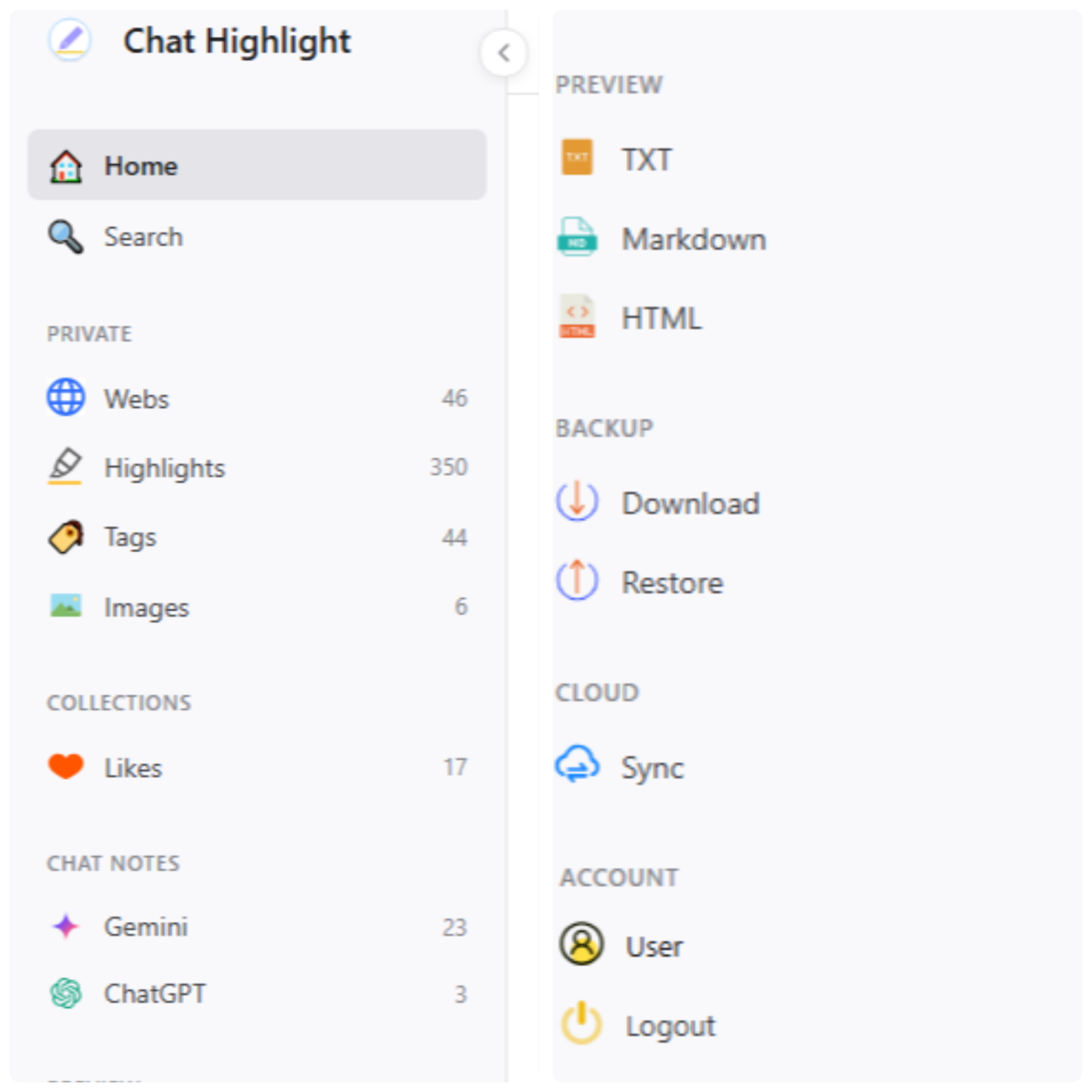
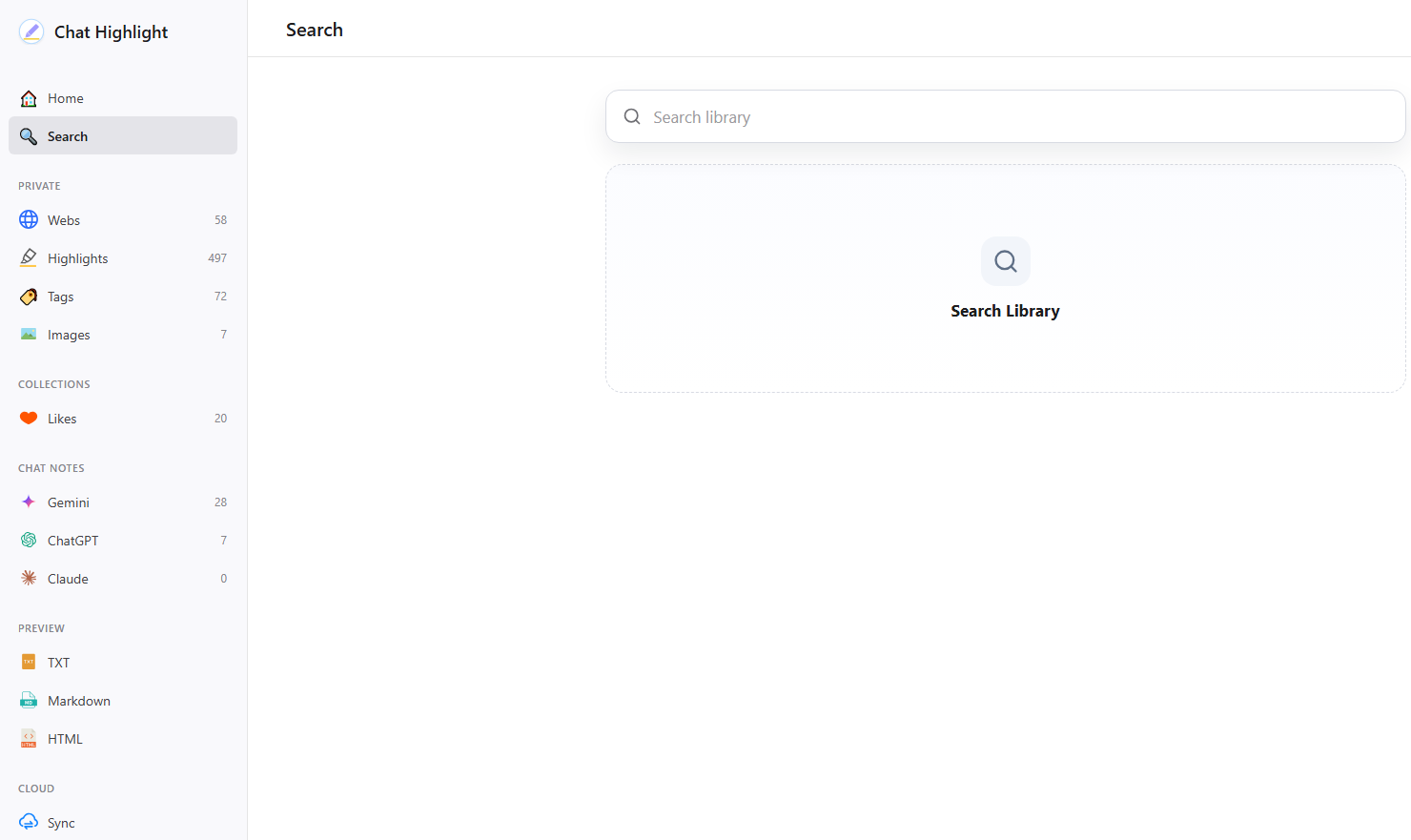
Manage all your data directly within the browser extension. The Local Dashboard is the offline command center for Webs, Images, Tags, Likes, Chat Notes, Timeline, search, inline edits, and exports.
Data Accessibility
Main features include:
8. Creating an Account
- Visit the Login Page or sign in directly from the extension.
- Use Google or Email/Password for instant access.
- Enable Cloud Sync once logged in.
9. Cloud Sync
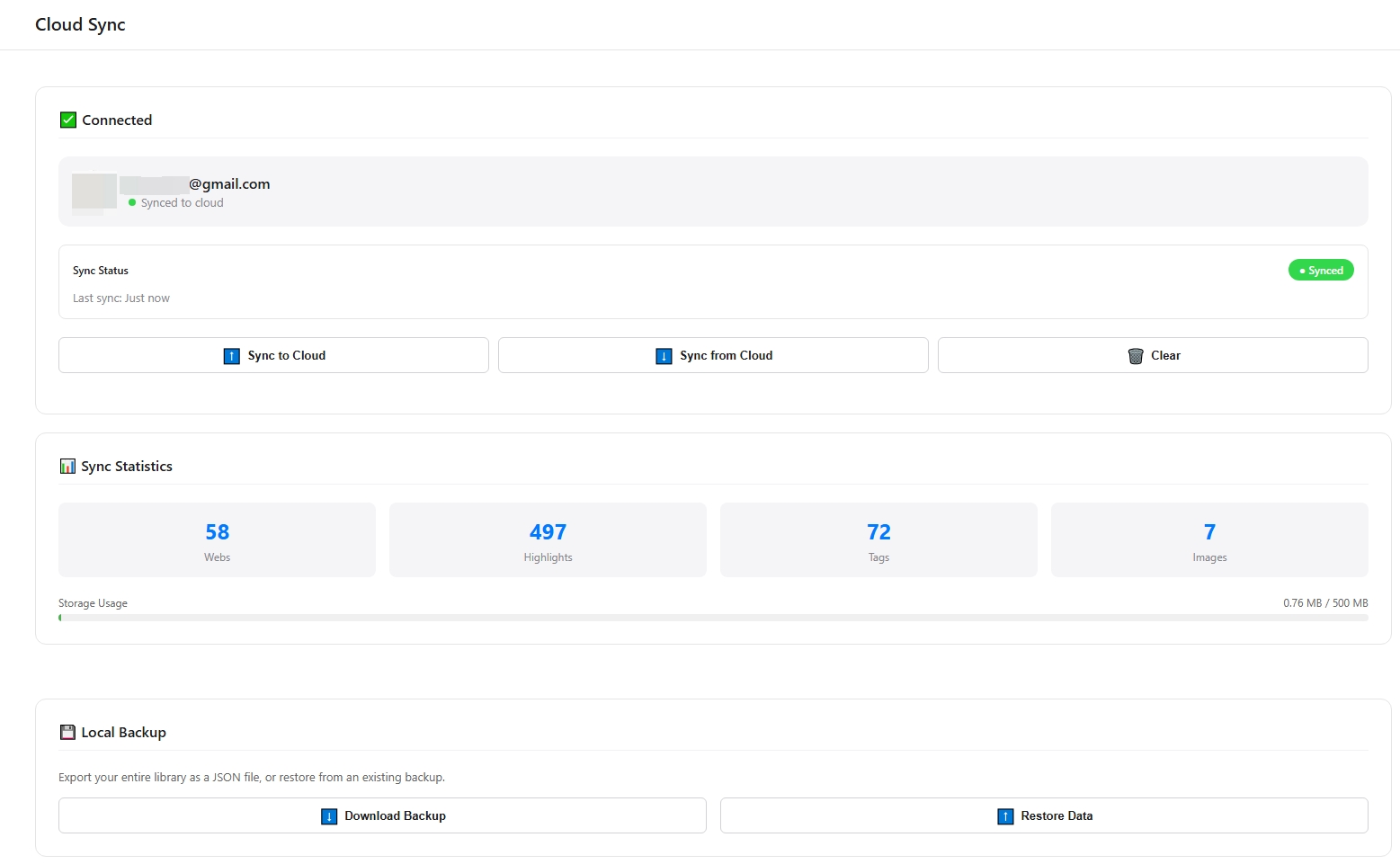
Sync your local insights to the cloud for:
9.1 How to Sync
- Click "☁️ Sync" icon in the Sidebar.
- Sign in via Google. Your data uploads automatically.
- Only valid highlight arrays are uploaded, reducing the chance of stale settings or malformed local data polluting cloud paths.
9.2 Sync Stats
10. Cloud Dashboard
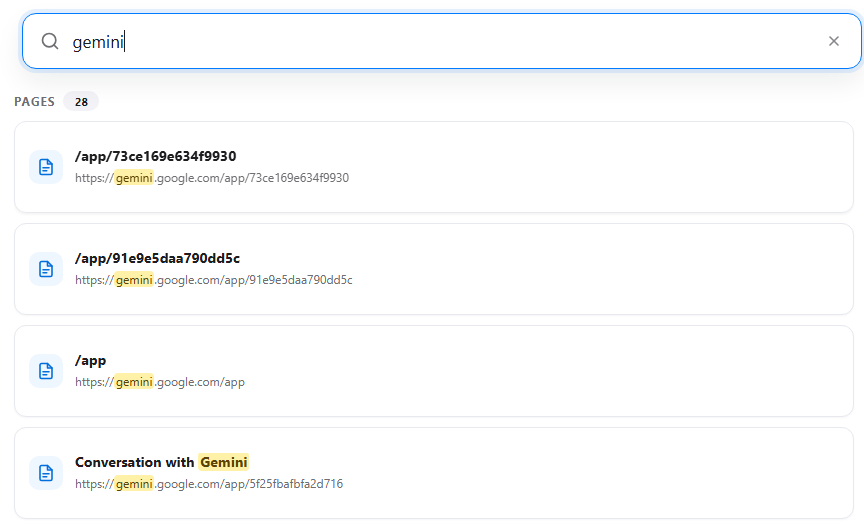
The web-based hub for your personal knowledge base: chat-highlight.com/viewer
10.1 Sections Overview
Overview cards
Global search
Grouped by URL
Keyword management
Visual assets
ChatGPT / Claude / Gemini
10.2 Export & Preview
- TXT: Plain text format.
- Markdown: Export structured notes in a portable text format.
- HTML Source: Preserves the original conversation structure.
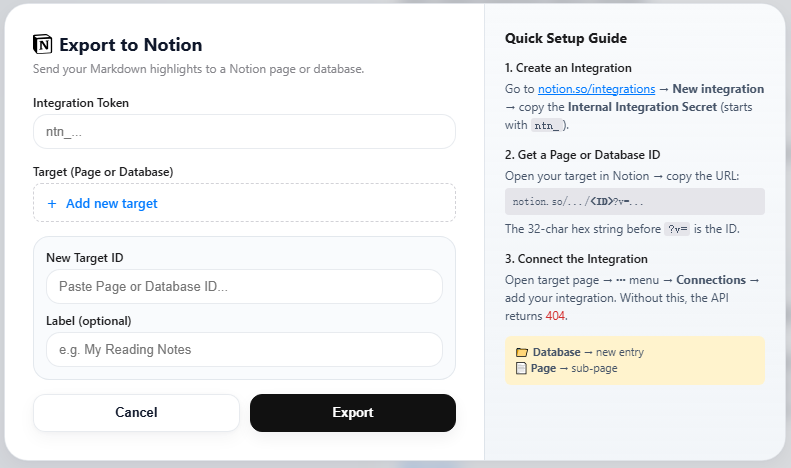
- Notion: Push selected highlights into a connected Notion database for long-term organization.
- You can preview effect before download.
10.3 Feature Mindmap
Search & Discover
AI Integration
Export & Reuse
Management
10.4 Backup & Restore
Export all your data as a single JSON file for manual backup.
Import your previously saved JSON file to recover insight data.
11. Plans & Pricing
Premium plans unlock the power of the cloud.
| Feature | Free | Pro | Ultimate |
|---|---|---|---|
| Price | $0 | $2/mo or $24/yr | $3/mo or $36/yr |
| Unlimited Highlights | ✅ | ✅ | ✅ |
| Unlimited Exports | ✅ | ✅ | ✅ |
| Local History | 30 Days | Unlimited | Unlimited |
| Cloud Sync Storage | 1 MB | 100 MB | 500 MB |
| Cloud Dashboard | Viewer | Viewer | Full Editor |
| 7-Day Refund Guarantee | — | ✅ | ✅ |
11.1 Steps to Upgrade
- Visit the Pricing Page.
- Use the Monthly / Yearly toggle for best value.
- Pay securely via Creem.
- Account upgraded instantly!
12. Account & Billing
Manage Subscriptions
- Visit your Billing Page.
- Click "Manage Subscription" to open the payment portal.
- Update payment methods, download invoices, or view your next charge date.
Cancellation
You can cancel anytime without hassle.
- Go to Billing.
- Click "Manage Subscription" and select "Cancel".
- Benefits remain active until the end of the current cycle.
7-Day Refund Policy
-
Email us at support@chat-highlight.com within 7 days of your first purchase.
-
Include your account email and transaction details.
-
Refunds are processed in 5-10 business days.